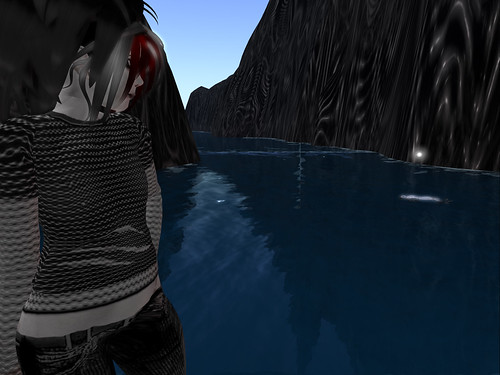
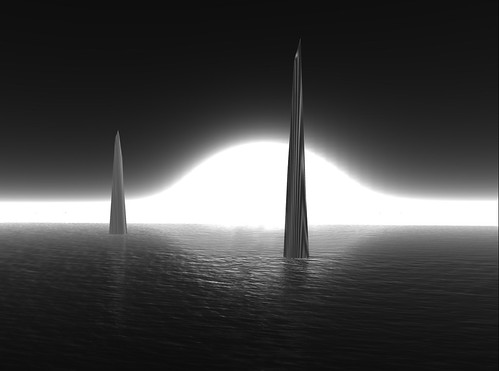
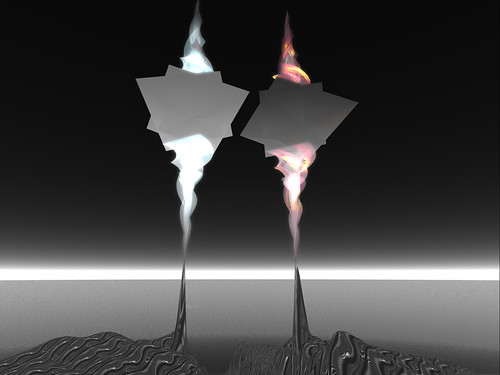
I was informed that the Cow sim, where 'Chasm' had been installed, was due to be sold on September 1st. So, regrettably, I had to take down everything the night after Arthole Season 2 opened.
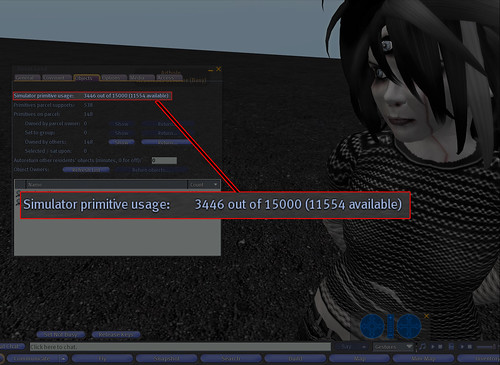
'Chasm' itself wasn't much -- only about 500 prims in all.
'ORIENTATION' was built on that sim as well, which took up about another 3000 prims.
So, in all, I had two major installations on the sim that took up just under 3500 prims. Not bad. I have learned to be rather frugal with prim usage, though.
I wasn't really too sad to take down 'Chasm' (though I wish I could have left 'ORIENTATION' up for a few more days so that Arahan & I could film it a bit); I was ready to say goodbye to it and move on.
Thanks again to everyone who contributed to, helped with, visited, and otherwise supported my projects on the Cow sim.
Showing posts with label sim project. Show all posts
Saturday, September 6, 2008
Saturday, August 9, 2008
'Chasm' blogged on NPIRL
Two articles in as many days on the Not Possible IRL blog:
The Chasm between loneliness and solitude -
Nebulosus Severine and her sim prompt self-awareness
Go there alone
Wow!
The Chasm between loneliness and solitude -
Nebulosus Severine and her sim prompt self-awareness
Go there alone
Wow!
Wednesday, August 6, 2008
'Chasm' installation - see it while you can!
Chasm
An installation by Nebulosus Severine
Cow sim
July/August 2008
http://slurl.com/secondlife/Cow/196/46/22
An installation by Nebulosus Severine
Cow sim
July/August 2008
http://slurl.com/secondlife/Cow/196/46/22
--------------------------------------------------------------------------------
"No matter how much you think you love someone or trust someone, know this:--------------------------------------------------------------------------------
Between you and everyone else on this planet there is a dark, infinite chasm that can never be crossed."
-- Oswald T. Pratt, You Are Worthless
Before you explore the sim, there are some specific instructions for optimal viewing. They may seem complicated, but I assure you, they are simpler than they first appear and completely worth the effort.
Additionally, I suggest that you visit and explore the sim alone.
Instructions:
1.) Enable music streaming and turn on your music.
2.) Turn your draw distance to maximum.
(Edit - Preferences - Graphics - Check the "custom" box if it is not already - Draw Distance: 512)
3.) Download and install the following Windlight settings.
Download the zip file here --
http://www.crabcult.com/ShineMod_DarkWater.rar
Instructions for installation:
---FOR WINDOWS USERS---
Unzip the files (if you don't have Winrar, you can download that for free here -- http://www.rarlab.com/) and extract them to the following locations:
Dark%20Water.xml -- C:\Program Files\SecondLife\app_settings\windlight\water
Shine%20Modified.xml -- C:\Program Files\SecondLife\app_settings\windlight\skies
---FOR MAC OS X---
Unzip the files (if you don't have UnRarX, you can download that for free here -- http://www.unrarx.com/) and extract them.
Go to your Applications folder and right-click on the version of Second Life you're running. Select 'Show Package Contents.'
It should open a new window with a folder called 'Contents' -- open that folder, then within it open 'Resources', then within that open 'app_settings', then within that open 'windlight.'
In the 'windlight' folder drag the files to these subfolders:
Dark%20Water.xml -- Resources/app_settings/windlight/water
Shine%20Modified.xml -- Resources/app_settings/windlight/skies
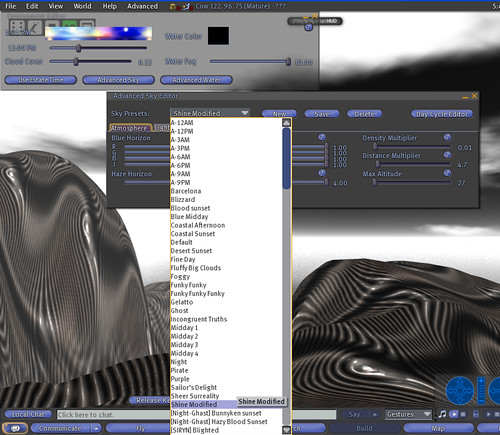
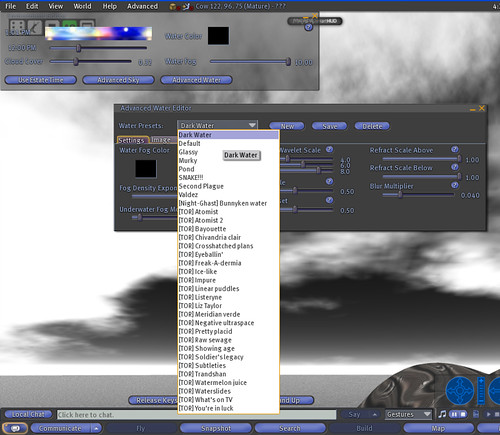
4.) Restart Second Life to see the new Windlight settings. Then, in the 'World' menu, select 'Environment Editor.' Press the 'Advanced Sky' button and choose 'Shine Modified' from the list. Press the 'Advanced Water' menu and choose 'Dark Water.'
[You can reset the skies/water at any time by choosing a different Windlight setting or by reverting to region default under 'Environment Settings.']
5.) Exploring the sim:
If you do not have a flight assist, you will need to wear a Flight Feather to explore. A free one is provided at the entrance to the sim.
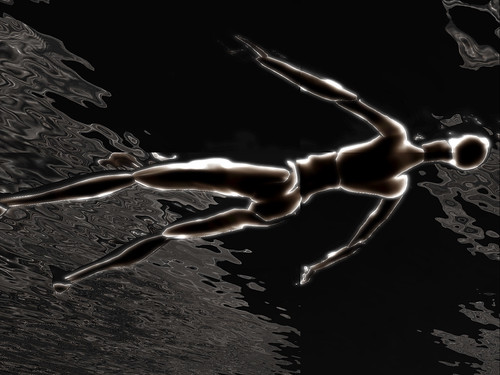
There are two major structures in the sim; you can fly up and through them. Also, you will quickly notice that there is only one way to get from one side of the sim to the other (if you pay attention to details you will figure it out). At water level, you will find the Lost Souls.
--------------------------------------------------------------------------------
Special thanks to:
-- Dirkthecow Writer and HERD for the use of their sim
-- Bettina Tizzy of NPIRL for making this possible
-- sp00ky Graves for help with textures, particles, and for general inspiration
-- Sean Clancy for help with the Mac OS X Windlight instruction settings
-- SomaFM for the 'Doomed' channel
-- All my visitors and supporters!
Tuesday, August 5, 2008
Windlight preset installation for Mac users!
I met a helpful person named Sean Clancy today at 'Chasm' and he was able to figure out how to install the Chasm Windlight presets for Mac OS X! I know several people have been asking me how to do it, and now I can finally pass that information along!
---FOR MAC OS X---
Download the zip file here --
http://www.crabcult.com/ShineMod_DarkWater.rar
1.) Unzip the files (if you don't have UnRarX, you can download that for free here -- http://www.unrarx.com/) and extract them.
2.) Go to your Applications folder and right-click on the version of Second Life you're running. Select 'Show Package Contents.'
It should open a new window with a folder called 'Contents' -- open that folder, then within it open 'Resources', then within that open 'app_settings', then within that open 'windlight.'
In the 'windlight' folder drag the files to these subfolders:
The original Windlight installation post is here:
http://chromotive.blogspot.com/2008/07/sim-project-update-2-windlight-music.html
Hooray!!!
---FOR MAC OS X---
Download the zip file here --
http://www.crabcult.com/ShineMod_DarkWater.rar
1.) Unzip the files (if you don't have UnRarX, you can download that for free here -- http://www.unrarx.com/) and extract them.
2.) Go to your Applications folder and right-click on the version of Second Life you're running. Select 'Show Package Contents.'
It should open a new window with a folder called 'Contents' -- open that folder, then within it open 'Resources', then within that open 'app_settings', then within that open 'windlight.'
In the 'windlight' folder drag the files to these subfolders:
Dark%20Water.xml -- Resources/app_settings/windlight/water
Shine%20Modified.xml -- Resources/app_settings/windlight/skies
3.) To see the new Windlight settings, you must restart Second Life. Then, in the 'World' menu, select 'Environment Editor.' Press the 'Advanced Sky' button and choose 'Shine Modified' from the list. Press the 'Advanced Water' menu and choose 'Dark Water.'
You can reset the skies/water at any time by choosing a different Windlight setting or by reverting to region default under 'Environment Settings.'
The original Windlight installation post is here:
http://chromotive.blogspot.com/2008/07/sim-project-update-2-windlight-music.html
Hooray!!!
Labels:
Chasm,
Mac OS X,
sim project,
Windlight settings
Friday, August 1, 2008
Chasm - sim project - update #4
I have added some new elements to the sim, the 'Lost Souls.' If you are at water level, you will notice them.
(A big thanks to sp00ky Graves for help with the particles, etc)
Wednesday, July 30, 2008
Chasm - Red
Figured out how to add music to a machinima.
Tuesday, July 29, 2008
New 'Chasm' machinima
Just another short teaser:
Sunday, July 27, 2008
My first machinima ever
This is nowhere near as good as Arahan's, but I wanted to make a very short machinima to upload to Flickr:
Saturday, July 26, 2008
'Chasm' machinima by Arahan
Holy shit!
My dear friend/partner in art-crime, Arahan Claveau, has taken some footage of 'Chasm' and crafted it into an amazing, flawless machinima that really captures the mood of the installation.
Friday, July 25, 2008
Sim project - update #3
http://slurl.com/secondlife/Cow/196/42/23
The title of this installation is 'Chasm.'
I have added two major structures to the sim today. You can fly up and through them. Also, you will quickly notice that there is only one way to get from one side of the sim to the other (if you pay attention to details you will figure it out). I have also changed the terrain textures a little bit.
Turning your draw distance to maximum is advised.
(Edit - Preferences - Graphics - Check the "custom" box if it is not already - Draw Distance: 512)
If you do not have a flight assist, you will need to wear a Flight Feather to explore. There is a dispenser with a free Flight Feather at the arrival point.
Please see the previous update for Windlight information - I have a special setting in mind that is essential to viewing this installation. Instructions are included here:
http://chromotive.blogspot.com/2008/07/sim-project-update-2-windlight-music.html
More details soon.
The title of this installation is 'Chasm.'
I have added two major structures to the sim today. You can fly up and through them. Also, you will quickly notice that there is only one way to get from one side of the sim to the other (if you pay attention to details you will figure it out). I have also changed the terrain textures a little bit.
Turning your draw distance to maximum is advised.
(Edit - Preferences - Graphics - Check the "custom" box if it is not already - Draw Distance: 512)
If you do not have a flight assist, you will need to wear a Flight Feather to explore. There is a dispenser with a free Flight Feather at the arrival point.
Please see the previous update for Windlight information - I have a special setting in mind that is essential to viewing this installation. Instructions are included here:
http://chromotive.blogspot.com/2008/07/sim-project-update-2-windlight-music.html
More details soon.
Monday, July 21, 2008
Sim project update #2 - Windlight & music stream
To visit the sim please use the following SLurl:
http://slurl.com/secondlife/Cow/197/41/22
I added a music stream today (SomaFM's 'Doomed'), so be sure to listen in when you're visiting the sim.
Turning your draw distance to maximum is advised. (Edit - Preferences - Graphics - Check the "custom" box if it is not already - Draw Distance: 512)
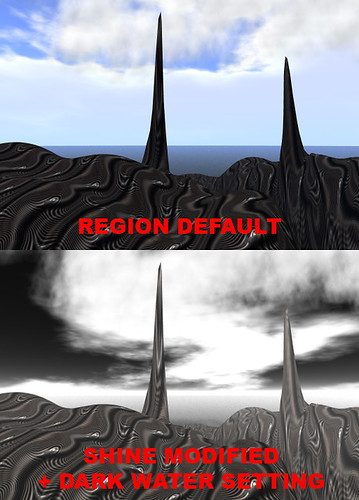
I also have a Windlight setting for optimal viewing.
My friend sp00ky has been helping me out a bit with my project and created Windlight sky & water settings that complement the setting perfectly.
Installing them might seem a bit complicated but is actually quite easy and takes only a moment or two, and I promise you the effect is worth it.
1.) Download the zip file here --
http://www.crabcult.com/ShineMod_DarkWater.rar
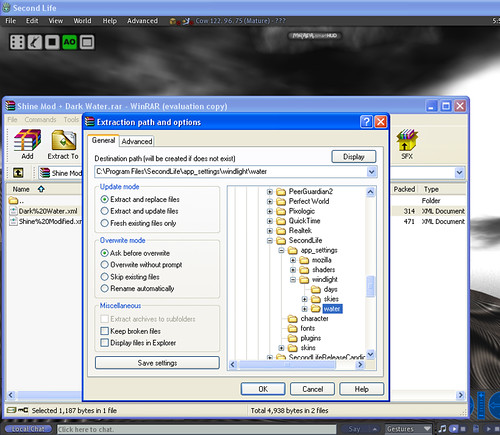
2.) Unzip the files (if you don't have Winrar, you can download that for free here -- http://www.rarlab.com/) and extract them to the following locations:
Dark%20Water.xml -- C:\Program Files\SecondLife\app_settings\windlight\water
Shine%20Modified.xml -- C:\Program Files\SecondLife\app_settings\windlight\skies
(Note: if you use the Release Candidate version of SL, be sure to unzip these to the appropriate Release Candidate folders instead.)
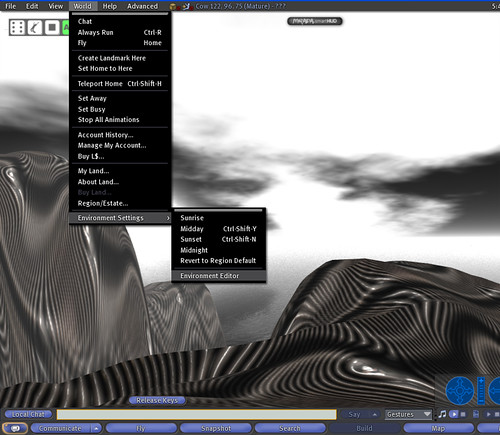
3.) To see the new Windlight settings, you must restart Second Life. Then, in the 'World' menu, select 'Environment Editor.' Press the 'Advanced Sky' button and choose 'Shine Modified' from the list. Press the 'Advanced Water' menu and choose 'Dark Water.'
You can reset the skies/water at any time by choosing a different Windlight setting or by reverting to region default under 'Environment Settings.'
http://slurl.com/secondlife/Cow/197/41/22
I added a music stream today (SomaFM's 'Doomed'), so be sure to listen in when you're visiting the sim.
Turning your draw distance to maximum is advised. (Edit - Preferences - Graphics - Check the "custom" box if it is not already - Draw Distance: 512)
I also have a Windlight setting for optimal viewing.
My friend sp00ky has been helping me out a bit with my project and created Windlight sky & water settings that complement the setting perfectly.
Installing them might seem a bit complicated but is actually quite easy and takes only a moment or two, and I promise you the effect is worth it.
1.) Download the zip file here --
http://www.crabcult.com/ShineMod_DarkWater.rar
2.) Unzip the files (if you don't have Winrar, you can download that for free here -- http://www.rarlab.com/) and extract them to the following locations:
Dark%20Water.xml -- C:\Program Files\SecondLife\app_settings\windlight\water
Shine%20Modified.xml -- C:\Program Files\SecondLife\app_settings\windlight\skies
(Note: if you use the Release Candidate version of SL, be sure to unzip these to the appropriate Release Candidate folders instead.)
[ Edit -- For Mac OS X installation instructions, please read here. Special thanks to Sean Clancy for help with this!! ]
(click pictures for higher resolution)
3.) To see the new Windlight settings, you must restart Second Life. Then, in the 'World' menu, select 'Environment Editor.' Press the 'Advanced Sky' button and choose 'Shine Modified' from the list. Press the 'Advanced Water' menu and choose 'Dark Water.'
You can reset the skies/water at any time by choosing a different Windlight setting or by reverting to region default under 'Environment Settings.'
Sim project - Update #1
My original 'Top Secret' plans have been scrapped and I am starting over. However, rather than waiting to open the sim, I will now allow open access so that anyone who is curious can come check out the work as it progresses. I only have the sim for about another month so I may as well make the most of it.
There isn't much yet here to see, but you may come visit by following this SLurl:
http://slurl.com/secondlife/Cow/197/41/22
More updates soon!
There isn't much yet here to see, but you may come visit by following this SLurl:
http://slurl.com/secondlife/Cow/197/41/22
More updates soon!
Subscribe to:
Posts (Atom)